Introduction
So what is CISA ScubaGear? Well, it isn't something to help you scuba dive! But it is another excellent opensource tool that you can add to your belt if you are interested in knowing how "secure" your M365 tenant is:
Automation to assess the state of your M365 tenant against CISA’s baselines - cisagov/ScubaGear
cisagov / GitHub
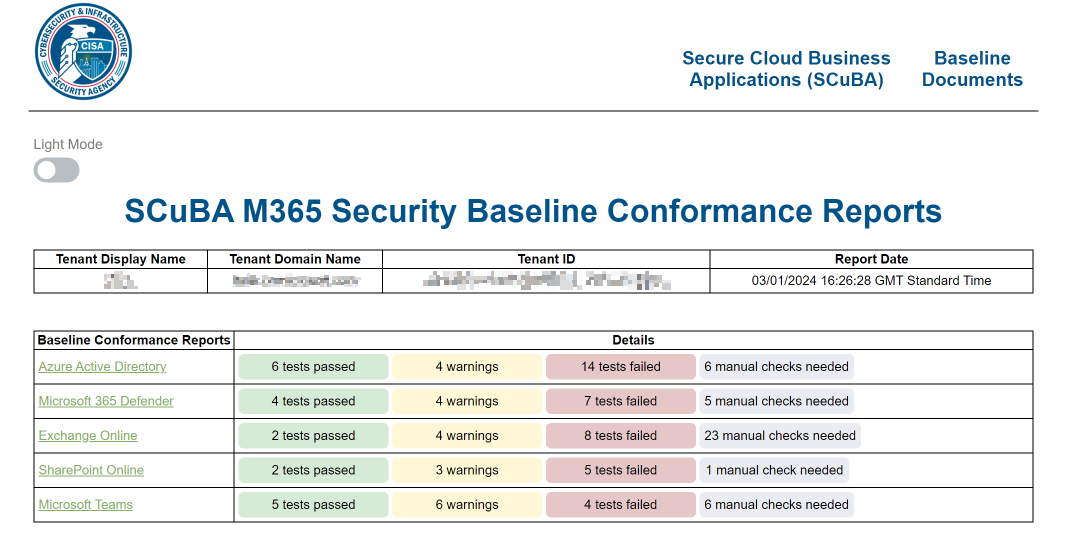
SCuBA stands for Secure Cloud Business Applications, and it is a framework akin to CIS, where they define a security configuration baseline that you can use to audit the security configuration of your M365 tenant - it is then up to you to carry out any required remediations. You can find the various baselines on the CISA SCuBA page if you want to read them:
https://www.cisa.gov/resources-tools/services/secure-cloud-business-applications-scuba-project
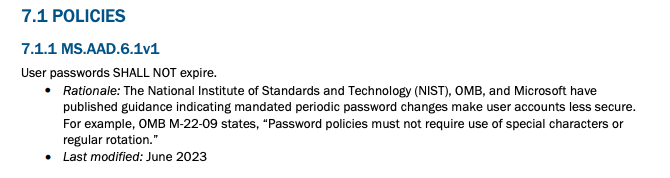
If you are familiar with the CIS M365 framework (or any of the CIS frameworks), then the SCuBA baselines will look very familiar:
However, in this blog post, I wanted to cover some issues I had with getting the SCuBA script to work correctly.
Installing SCuBAGear
The first stumbling block I had was getting SCuBA to run correctly. On the GitHub repo, a getting started section tells you how to install it (extract a ZIP file & import a module). However, doing this didn't work for me as several PowerShell modules were missing. There is a prereq command you can run to make sure that you have everything you need to be able to run Invoke-SCuBA:
In the root of the directory where you extracted the SCuBA files, run SetUp.ps1:
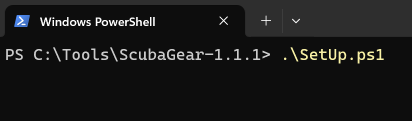
This will install all of the prerequisites needed to get going with SCuBA.
Running SCuBA
Next, you can run SCuBA as per the documentation in GitHub: Invoke-SCuBA. This did appear to work as expected, as there were no errors in the PowerShell window. However, when looking at the output report, I noticed that some of the information it gathered was incorrect. For example, it said we only had 1 Global Admin in our tenant, which was me, which I know isn't correct! I was trying to then figure out, how it was getting this information. For this particular check, it is using the ExportAADProvider PowerShell module located at the following path:
ScubaGear-1.1.1\PowerShell\ScubaGear\Modules\ProvidersWhen reviewing the module, it uses a function called Get-PriviledgedUser:
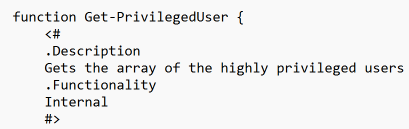
When I manually ran this command, I got some errors on the authentication, saying that the Microsoft Graph Command Line Tools didn't have permission to view this information (apologies, I didn't capture a screenshot of this!!). I then reviewed the SCuBA GitHub docs again and found that the Microsoft Graph Enterprise App needs some additional permissions:
Automation to assess the state of your M365 tenant against CISA’s baselines - cisagov/ScubaGear
cisagov / GitHub
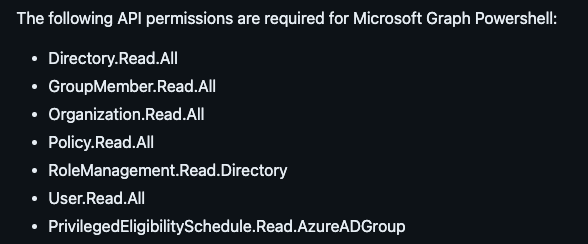
When you run Invoke-SCuBA, it uses the Microsoft Graph PowerShell to retrieve some of the information it needs. If you, like me, already have an Enterprise Application configured for Microsoft Graph Command Line Tools, then the Enterprise Application probably doesn't have the correct permissions needed for SCuBA.
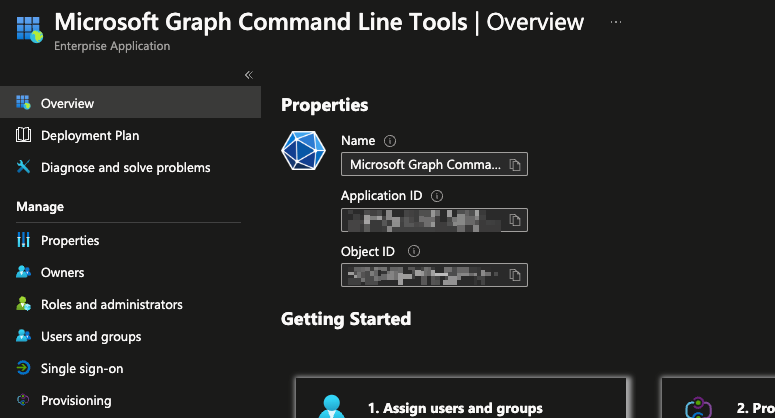
You can give the Enterprise App the required permissions for SCuBA by running the below PowerShell:
Connect-MgGraph -Scopes "Directory.Read.All","GroupMember.Read.All","Organization.Read.All","Policy.Read.All","RoleManagement.Read.Directory","User.Read.All","PrivilegedEligibilitySchedule.Read.AzureADGroup"Once you run this, make sure to Grant Consent for the organisation. After which, the permissions should have been updated:
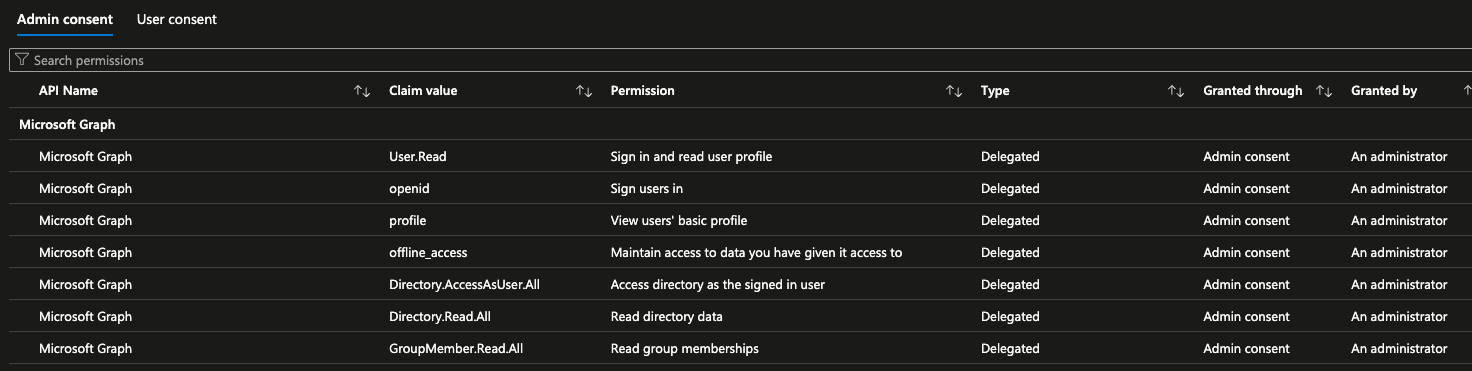
You can now rerun Invoke-SCuBA, and hopefully, you should find the data retrieved back is now correct, and you can now start to review your test scores!